Use Hypershare on your Hyper Network device
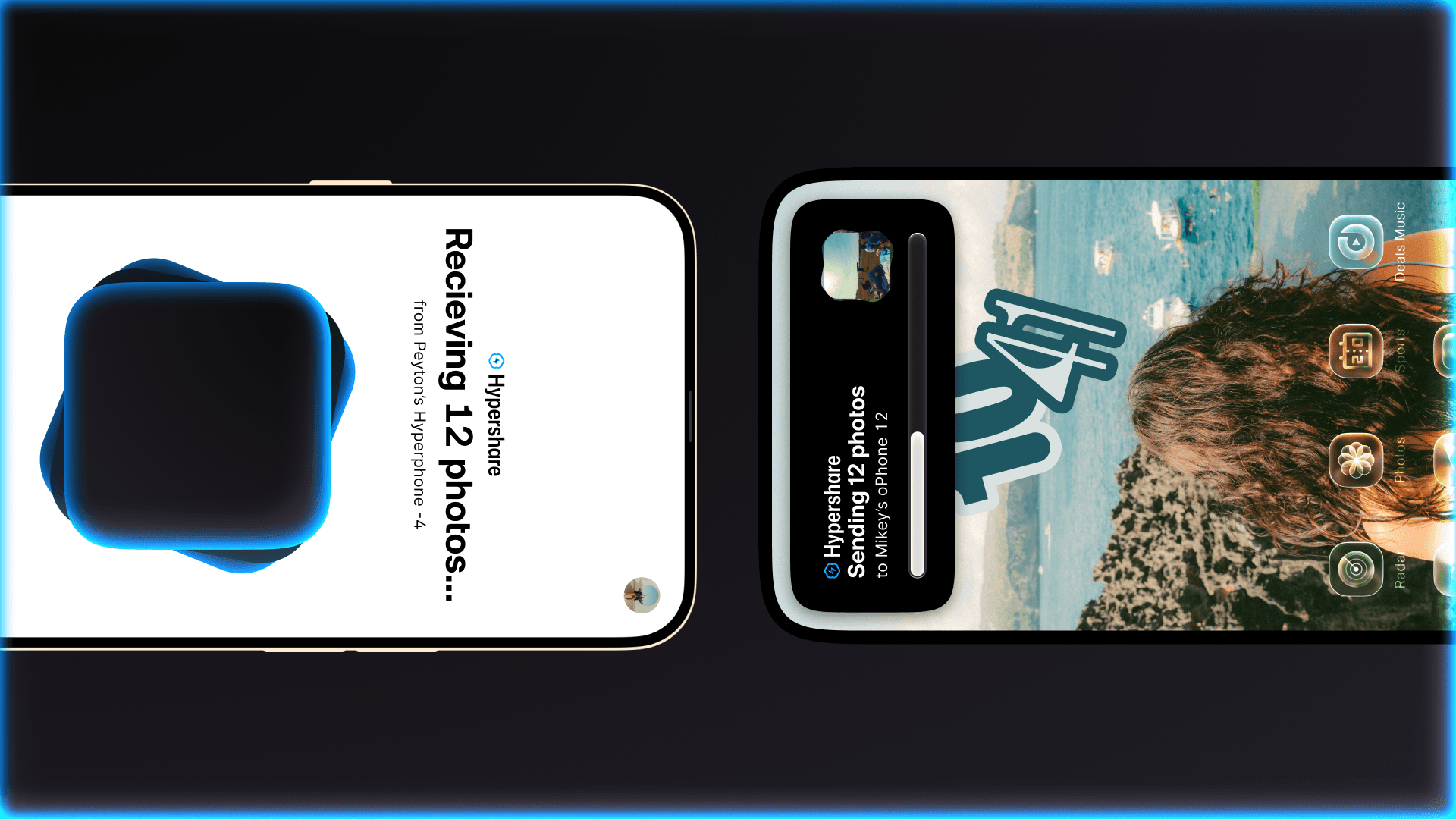
With Hypershare, you can securely send and receive photos, documents, and more with other devices. On devices that support Hyper Network 2, you can enjoy Hypershare at faster speeds, and send more information over a secure connection.
Before you begin
Make sure that the person you're sending to is nearby and within Bluetooth range, and that you both have Wi-Fi, Bluetooth, and Hyper Network turned on. If either of your have your mobile hotspot enabled, disable it.
If both devices are a Hyperphone -2 or later, try holding them together to share Hypershare Instant Nearby.
Choose which devices can Hypershare with you
On a Blaze device
Go to Settings > Hyper Network > Hypershare.
Choose one of these options to choose which devices can send you content over Hypershare:
Hidden (no one can use Hypershare with you, not even your own devices)
My Devices (only devices signed into your Blaze ID can see your device)
Contacts Only (only your devices or people in your contacts can see your device)
Everyone for 10 Minutes (all nearby devices that work with Hyper Network can see your device)
Ask the other person to check their Hyper Network settings. If their device is set to Contacts Only, and you're in their contacts, they'll need to save the same phone number or email you have saved in your Blaze ID. If you're not in their contacts, ask them to turn on Everyone for 10 Minutes.
On a different Hyper Network device
Open the Hypershare app, then click on your Blaze ID photo (or the person icon if you're not signed in).
Tap one of these options to choose which devices can send you content over Hypershare:
Hidden (no one can use Hypershare with you, not even your own devices)
My Devices (only devices signed into your Blaze ID can see your device)
Contacts Only (only your devices or people in your contacts can see your device)
Everyone for 10 Minutes (all nearby devices that work with Hyper Network can see your device)
Ask the other person to check their Hyper Network settings. If their device is set to Contacts Only, and you're in their contacts, they'll need to save the same phone number or email you have saved in your Blaze ID. If you're not in their contacts, ask them to turn on Everyone for 10 Minutes.
Send content with Hypershare
Open an app, find and choose the content you want to share, then click the Share button. If you're on a Hyperphone and sharing from Photos, you can swipe left of right to select multiple photos.
Click Hypershare, then click the name of the person (or one of your own devices) that you want to share with.
When Hypersharing, you'll see a radar view of everyone you can share with, with your photo (or device if you're not signed into a Blaze ID) appearing at the bottom. The devices closest to your photo are your own devices, in the middle are devices from people you know, and the devices furthest away are unknown devices. You may have to accept a confirmation message before sharing to an unknown device.
Accept a Hypershare request
When someone shares something with you via Hypershare, you'll receive a notification. On Hyperphone, this will appear in Dynamic View. On oPhone and OrangePhone, this will appear in Dynamic Border or Dynamic Bubble. Click Accept to start the file transfer.
Wait for the file transfer to complete. If you're on Hyperphone, the progress will appear in Dynamic View. On oPhone and OrangePhone, this will appear in Dynamic Border or Dynamic Bubble. On non-Blaze devices, this may open the Hypershare app.
If you want to cancel the Hypershare transfer, press the Cancel button in the Hypershare app. You can quickly go to the Hypershare app while a transfer is happening by clicking on the notification, or the status indicator in Dynamic View, Dynamic Bubble, or Dynamic Border.